One folder for everything
Put your APKs, videos, images and app data in one content folder on the PC. AiRedXR knows which headset folder each one belongs in.


A Windows app that installs your apps and copies your videos, images and app data onto a whole room of VR headsets from one folder, then reads each headset back to confirm everything arrived.
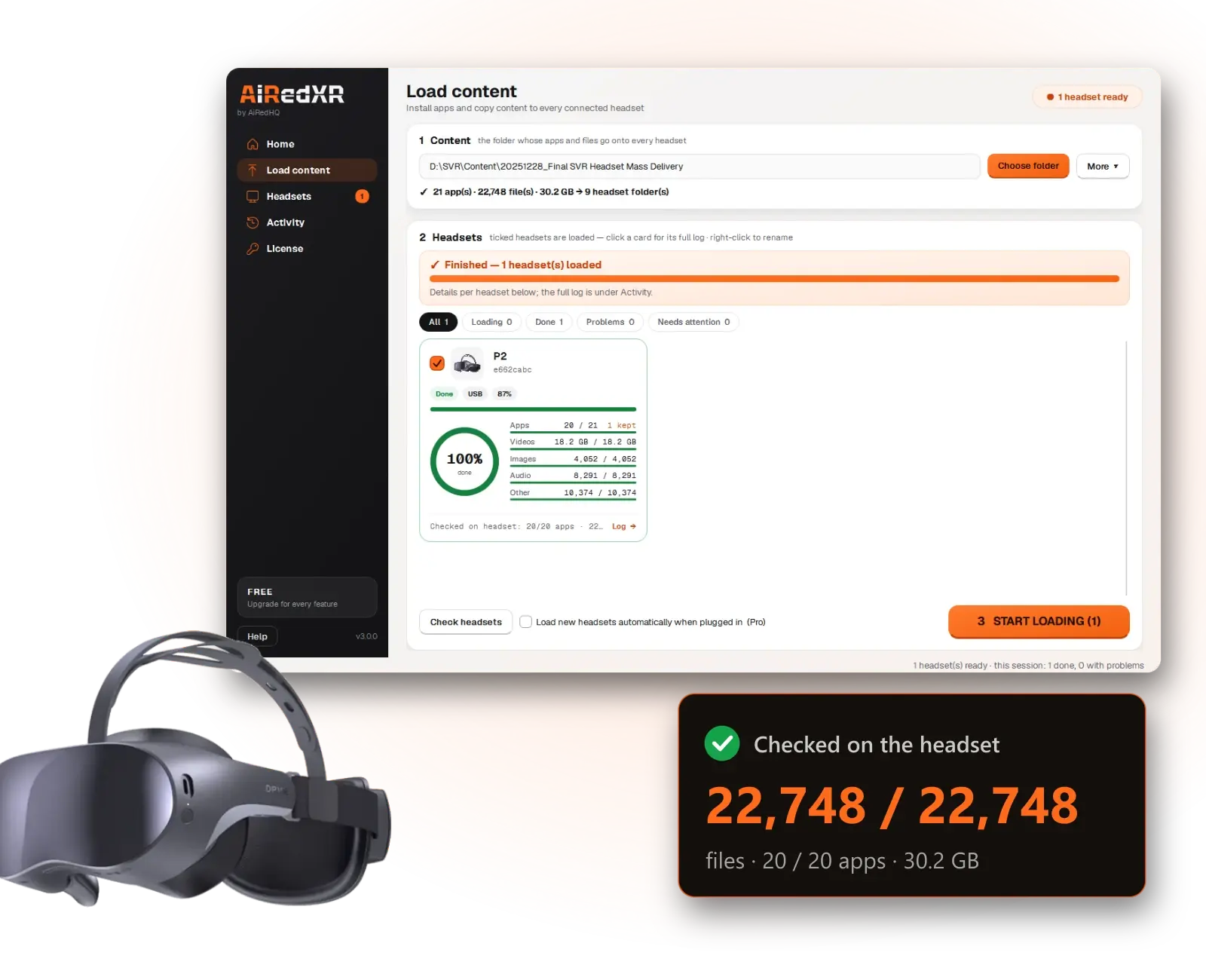
Copying content onto VR headsets is usually done one headset at a time, by hand, and nobody can say for sure what reached which device. AiRedXR loads them all from the same folder and tells you, headset by headset, what is really on each one.
Put your APKs, videos, images and app data in one content folder on the PC. AiRedXR knows which headset folder each one belongs in.
Each load copies every file and replaces what is on the headset, so a file you updated under the same name goes out again.
After copying, AiRedXR reads the headset back and confirms every file, by name and size, and every app. “Done” only appears when the headset really has it.
Apps of the same or a newer version are installed. A lower version never replaces a newer one, and when your folder holds the same app twice, only the newest is installed.
If a headset drops off USB, the load waits for it and carries on. Retry failed continues where a broken load stopped instead of starting again.
AiRedXR is for anyone who has to get the same content onto many standalone VR headsets, and know it got there.
Load a new module onto every headset in the room in one go, and see which headsets are ready before the session.
Keep a lab's headsets identical, term after term, without a staff member copying files to each one.
Prepare batches of headsets with your apps and content before delivery, with a report per headset.
See battery, free space, Wi-Fi and firmware for every headset, mirror any of them on the PC, and reboot or update them from one place.
Reload headsets between sites from a laptop, over USB or Wi-Fi.
AiRedXR runs on the Windows PC the headsets plug into. Nothing is installed on the headsets except your own apps.
Apps go in APKs; videos, images and app data go in folders named after where they belong on the headset. AiRedXR can create the folder structure for you.
Each one appears as a card. Untick any you want to leave out.
Apps install while files copy. Every card shows a progress bar and live counts of apps, videos, images, audio and other files.
Each headset is checked on the device. Green means done and checked; red names exactly what is missing. A daily report opens in Excel.
The same app loads content and looks after the headsets afterwards.
One card per headset with a progress bar and counts of apps, videos, images, audio and other files.
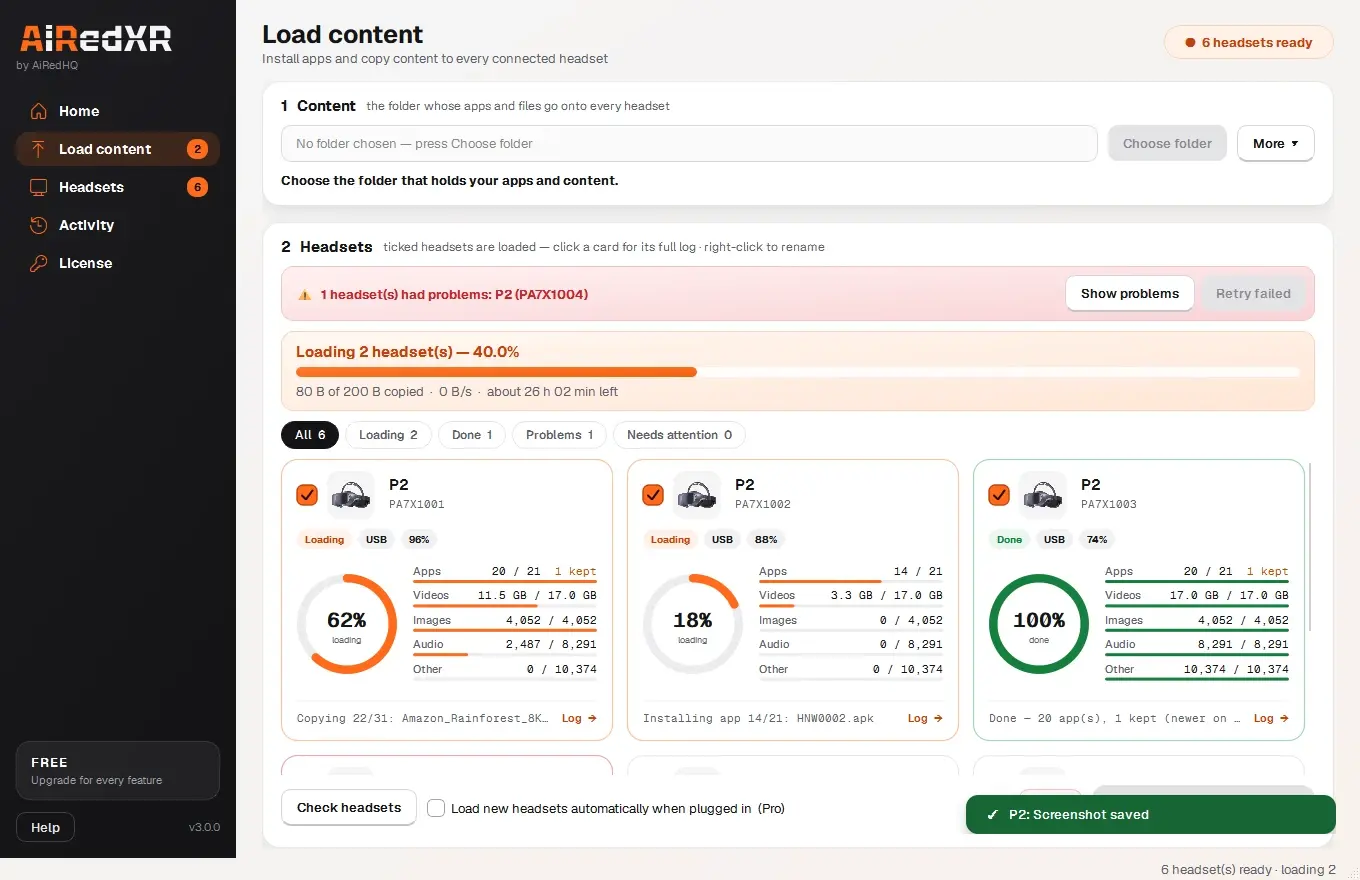
Screens from AiRedXR. The checked result is a real load; the others use demo headsets.
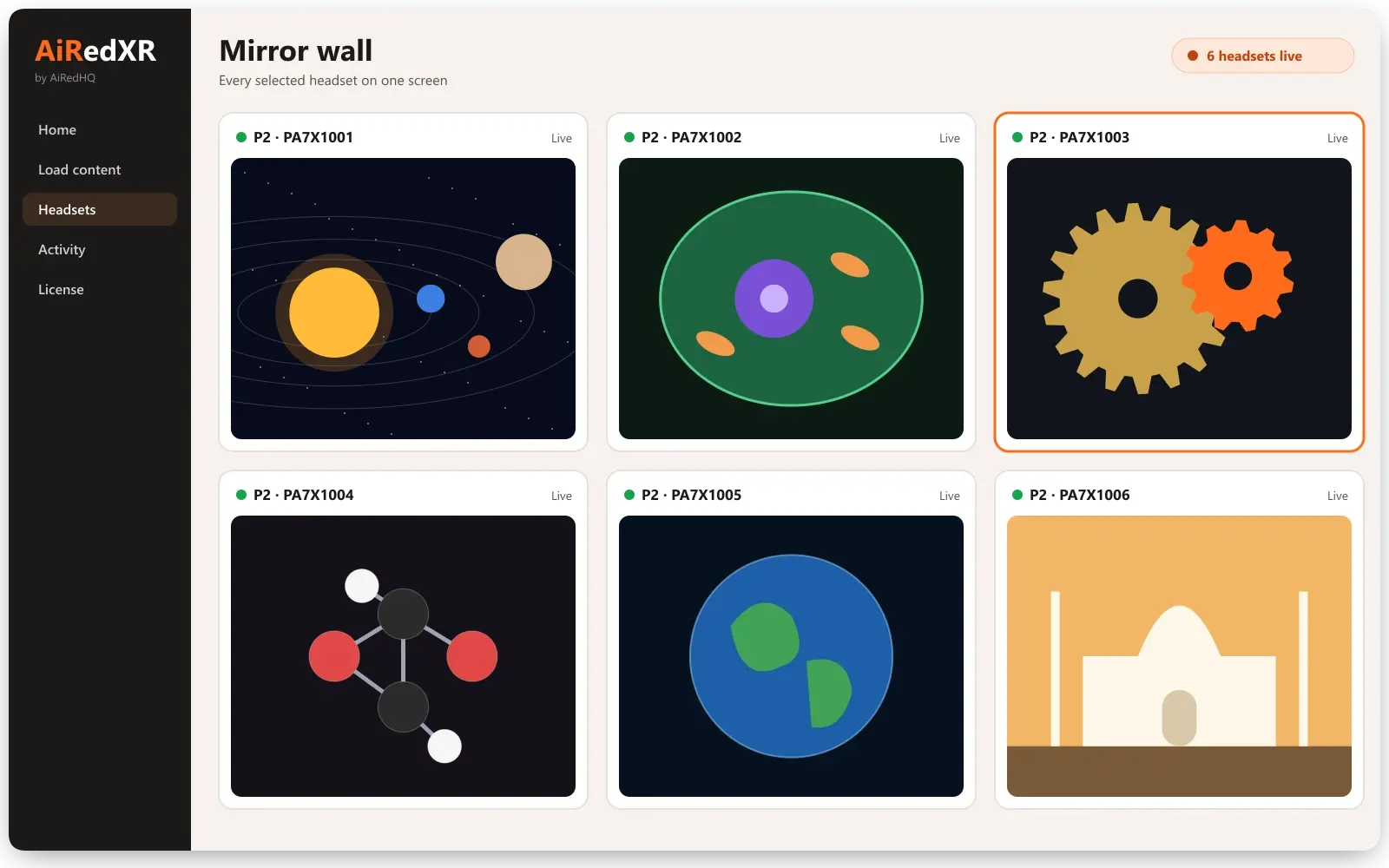
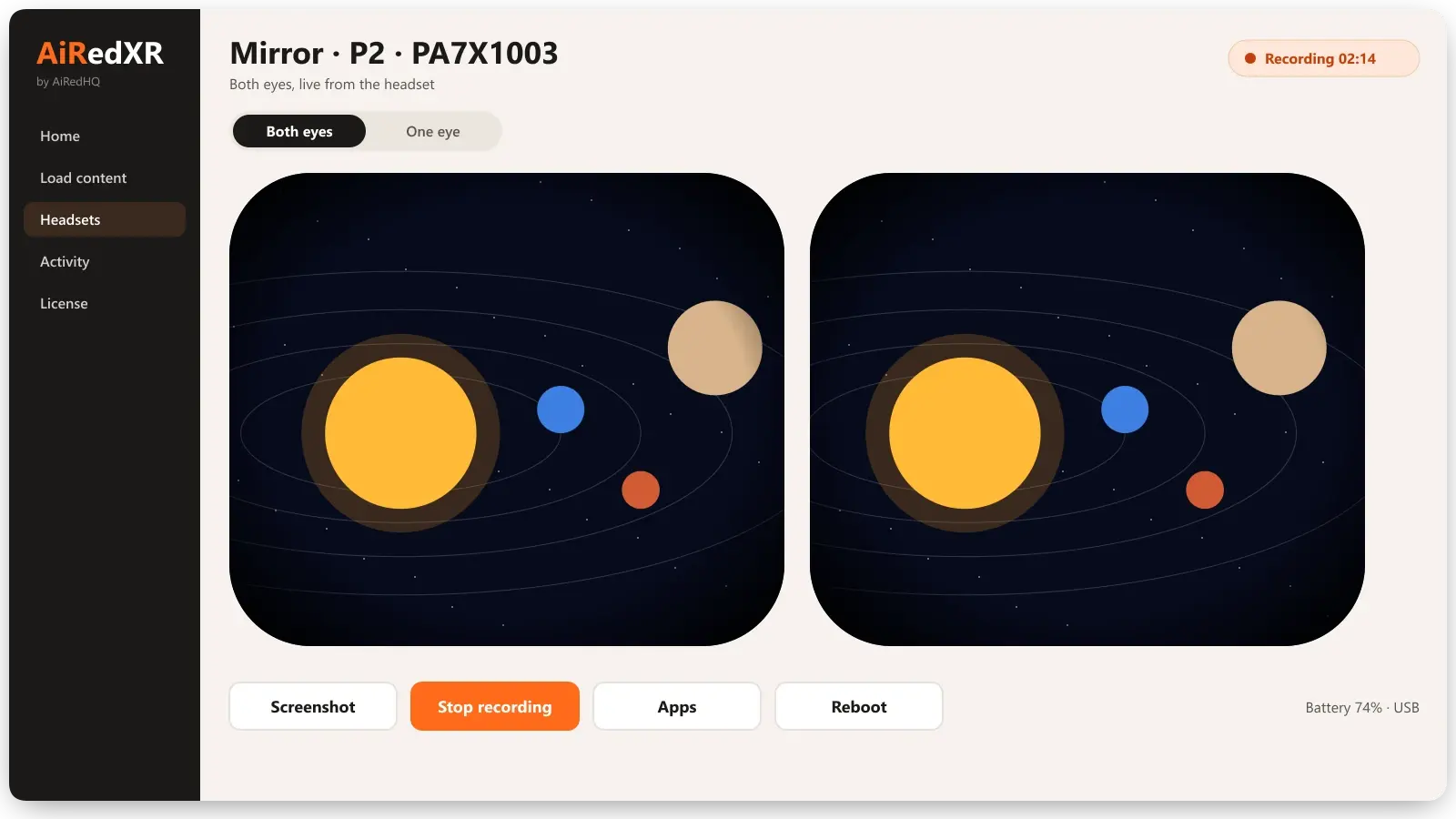
Mirror one headset to guide a student, or put every selected headset on one screen and watch the whole class at once. Take screenshots and record sessions while you watch.
Guide one student
See exactly what they see and talk them through it.
Watch the class
Spot who is lost or off task from the front of the room.
Capture the moment
Screenshots and recordings for reports and parents.
Act from the PC
Open apps or reboot a headset without touching it.
Illustrations of AiRedXR mirroring.
Free for 2 headsets at a time.
Info, mirror and screenshot free; the rest with Pro.
Most VR labs load headsets one at a time with a file manager and a cable. AiRedXR was built so the result can be trusted without opening every headset.
“Copying by hand” describes the usual way headsets are loaded with a file manager or USB tools, not any one product.
AiRedXR Free loads content onto 2 headsets at a time and includes headset details, mirroring and screenshots. Pro unlocks every feature, including the mirror wall, recording, Wi-Fi and app management, for a whole room of headsets at once. One licence key is active on one PC at a time; move it whenever you need to.
Free
Load content onto 2 headsets at a time, with headset details, mirroring and screenshots.
Free
Pro
Every feature, for a whole room of headsets at once.
Price on request
Updated
A Windows app that loads apps and content onto many standalone VR headsets from one folder, checks every headset afterwards, and lets you manage the headsets: mirror, screenshots, apps, Wi-Fi, reboot and updates.
AiRedXR is built for DPVR headsets and tested on the DPVR P2. Headsets connect to the PC by USB, or over Wi-Fi once set up.
No. Turn on USB debugging once and tap Allow when the headset asks. Only your own apps are installed on the headsets.
After copying, AiRedXR reads the headset back and compares every file's name and size with your PC, and checks every app is installed. Missing files are sent again. A headset only shows Done when everything is there; otherwise its card turns red and names what is missing.
Yes. Every load sends everything in your content folder and replaces what is on the headset, so updated files with the same name are copied again. Only Retry failed skips what a broken load already copied.
AiRedXR waits for the headset to come back, for up to 2 minutes at a time, and carries on. If it doesn't come back, press Retry failed once it is reconnected.
No. The same or a newer version is installed; a lower version never replaces a higher one.
It depends on the size of your content and the USB link. Every headset is checked file by file at the end, so when a load says Done, the headset really has everything.
Yes: 2 at a time with Free, and a whole room with Pro. Headsets on one USB hub share its speed, so spread them across ports for the fastest results.
No. Content goes only from your PC to your headsets. A few times a day the app sends AiRedHQ an anonymous PC code, its version and its plan to check the licence. No names, files or headset content are sent.
Yes. Loading and managing headsets need no internet. Pro needs internet once to activate and keeps working offline for up to 14 days between checks.
AiRedXR came out of our AR/VR work. If you need training content to load onto those headsets, we build that too.
Load 2 headsets free. Upgrade when you need the whole room.